WordPress Fundamentals·
Editor Efficiency: Troubleshooting and Fixing Common 2026 Block Editor Issues

Karl Esi
WordPress Engineer & Founder·WP Stability
The Modern Editor Experience
In 2026, the WordPress Block Editor (Gutenberg) has evolved into a full-scale design application. With the release of WordPress 7.x, we have seen the integration of WordPress 7.1 Collaborative Editing and Real-Time Workflows, making the dashboard more powerful than ever. However, this increased complexity brings new technical challenges.
When your editor lags, or when blocks refuse to validate, your editorial momentum grinds to a halt. Effective Troubleshooting and Fixing Common 2026 Block Editor Issues is essential for maintaining a productive AI-integrated Editorial Workflow.
The Problem: The Conflict of Complexity
The most common issues in the 2026 editor stem from "Plugin Overload" and "Block Style Conflicts." As themes move toward Full Site Editing (FSE), the CSS and JavaScript required to render the editor can sometimes clash with third-party extensions. This results in the dreaded "This block has encountered an error" message or a dashboard that feels sluggish and unresponsive.
Without a professional WordPress Maintenance Checklist 2026, these small glitches can lead to database corruption or lost content drafts, especially in high-pressure environments like News and Media Portals.
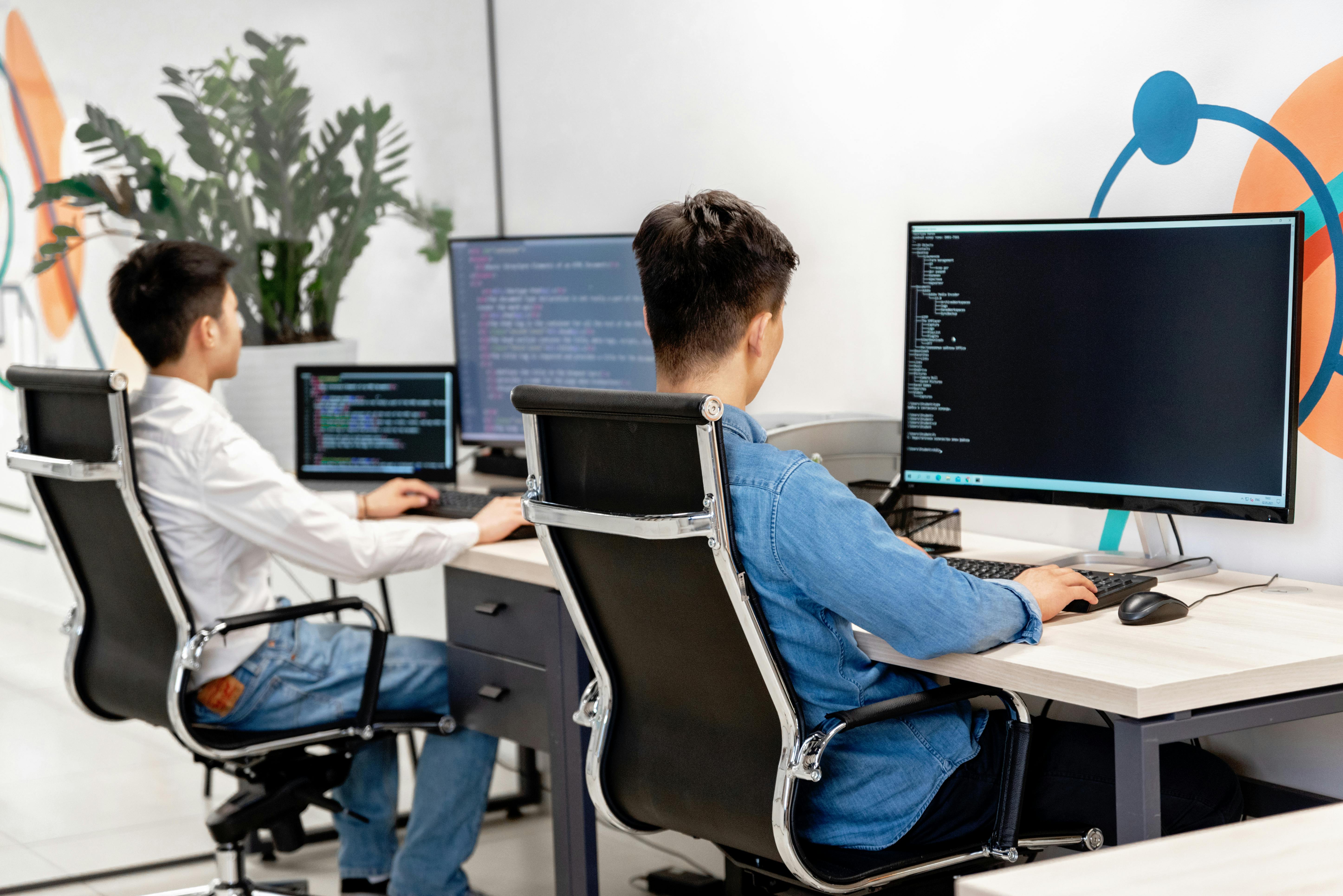
Deep Dive: Solving 2026's Editor Bottlenecks
1. Resolving Block Validation Errors
Validation errors usually happen when the HTML structure of a block in the database doesn't match the code in the plugin or theme. Instead of clicking "Attempt Block Recovery"—which can sometimes strip formatting—we recommend using the "Code Editor" view to identify mismatched tags. This is a critical skill for Enterprise WordPress Governance.
2. Eliminating Dashboard Lag
If your editor feels "heavy," it is often due to excessive "meta-boxes" or 3rd-party sidebar panels. In 2026, we utilize the "Preferences" menu to disable unused panels and offload heavy processing to Background Jobs. This keeps the main thread clear for writing and designing.
3. Fixing Layout Shifts in the Editor
Sometimes, the "Backend" doesn't look like the "Frontend." This is usually due to a lack of Editor Styles support in the theme. We ensure that your theme's theme.json file is correctly configured to load identical typography and spacing in the editor, maintaining Aesthetic Integrity for Portfolios.
4. Collaborative Sync Errors
With real-time collaboration, "Sync Conflicts" can occur if two users edit the same block simultaneously. We ensure your server's REST API and WebSockets are optimized for high-frequency updates, a foundation of WordPress 7.x Maintenance & Support.
The Editor Maintenance Workflow
- Selective Block Disabling: We use the Block Manager to hide blocks that your team doesn't use. This simplifies the UI and reduces the JavaScript payload loaded by the editor.
- Regular Transients Cleanup: The editor stores many temporary settings in the database. Cleaning these regularly prevents "Ghost Settings" from affecting your layouts, following Sustainable WordPress Maintenance principles.
- Browser Resource Audits: We ensure your editorial team is using modern browsers that can handle the WebAssembly (WASM) components of the 2026 Block Editor.
Common 2026 Editor Pitfalls
Over-nesting Group Blocks
Creating a "Group within a Group within a Group" can lead to complex CSS that is difficult to maintain and can cause rendering issues on mobile. We advocate for a "Flat" block hierarchy wherever possible.
Ignoring 'Console Errors'
If the editor is acting strangely, the browser's Inspect Tool is your best friend. JavaScript errors from a conflicting plugin will appear here first. Identifying these is a key part of WordPress Troubleshooting.
Hard-coding Styles in Blocks
Using "Inline Styles" for colors and font sizes makes it impossible to update your brand identity globally. Always use "Theme Colors" and "Typography Presets" to stay aligned with Franchise and Multi-location Brand Standards.

How WP Stability Restores Your Creative Flow
At WP Stability, we believe your CMS should be a tool, not a hurdle. We specialize in the technical tuning required to keep the WordPress Block Editor running at peak performance. We handle the Performance Optimization of the backend, ensuring your team can publish faster and with fewer errors.
Whether you are navigating the Data Liberation shift or managing High-Security Professional Sites, we ensure your editing experience is seamless.
Real-World Case Study: The Editorial Rescue
A major lifestyle publication was losing hours of work every week due to "Block Recovery" errors on their long-form articles. WP Stability identified a conflict between their custom "Review" block and a legacy SEO plugin. We refactored the block code and optimized their database, resulting in a 100% reduction in validation errors and a significantly faster dashboard experience.
Action Plan: 3 Steps to a Faster Editor Today
- Audit Your Block Manager: Go to the Options menu in the editor and uncheck every block your team hasn't used in the last 30 days.
- Check for 'Theme.json' Errors: Use a JSON validator to ensure your theme's configuration is clean and error-free.
- Clear Your Browser Cache: Sometimes, the editor "remembers" old plugin code. A hard refresh can solve many mysterious UI glitches.
Closing CTA
Your team's time is valuable. Don't waste it fighting a glitchy editor.
Is your WordPress Block Editor slowing down your production? Contact WP Stability today for a full dashboard optimization and a maintenance plan that keeps your creative workflow moving.
Share
Related posts
WordPress Fundamentals
Inclusive by Design: Navigating WordPress Accessibility and ADA Compliance in 2026
WordPress Fundamentals
The Great Unlocking: Navigating WordPress 7.0 Multilingualism and Data Liberation
WordPress Fundamentals